Orchestra AI
One console for your AI keys, CPU and GPU workers
Orchestra AI is the console that runs your AI workers on your own computer or server. Keep your provider keys in an encrypted vault, add CPU workers for cloud models and GPU workers for models on your own graphics card, choose how each request is routed, and watch load, queue and cost live.
- Docker
- Windows
- Linux
- x86-64
- ARM64
What Orchestra AI is
Orchestra AI is the control room for your AI. It runs on your own computer or server and keeps every provider key, worker and request in one place.
You add workers: CPU workers call cloud models with the keys you store in the vault, and GPU workers run models on your graphics card. Orchestra sends each job to a worker, retries when a worker fails, and keeps the queue, the logs and the cost visible on one screen.
Nothing is hidden: you see which worker answered, how long it took, what it cost, and which provider was used.
How a request flows
Animation: a request travels from you to Orchestra, then to the worker it chooses.
What the GPU worker is
A GPU worker is an Orchestra worker that runs open AI models on the graphics card in your computer. It uses Ollama, so models such as Llama, Qwen and Mistral run on your hardware: prompts and answers never leave it, and there is no fee per token.
Every GPU brand is found automatically on Windows, Linux and macOS, and AXTO Setup tests the card inside the worker before it starts. NVIDIA cards run in the GPU worker on Windows and Linux, AMD cards on Linux; other cards (and AMD or Intel on Windows) run through Ollama on your computer. The GPU Pool shows each card's model, utilisation, temperature, memory in use and power — and says plainly when a card cannot be used, and why.
The GPU worker is included in every Orchestra AI edition. The edition sets how many workers you can run; GPU workers count inside that limit.
Check that a model runs on the GPU
Run a model once (for example `ollama run llama3.2`), then run `ollama ps`. The PROCESSOR column must say 100% GPU. Orchestra's GPU Pool shows the same card with its utilisation, memory in use and temperature.
ollama run llama3.2
ollama ps

NAME        ID      SIZE     PROCESSOR    UNTIL
llama3.2    a80c…   4.0 GB   100% GPU     4 minutes from now
Use it in nine steps
- 1
Install and activate
Install Orchestra AI with AXTO Setup (Windows or Linux) and enter your licence key. The licence is checked online; if the check cannot be reached, Orchestra keeps working for a short grace period.
- 2
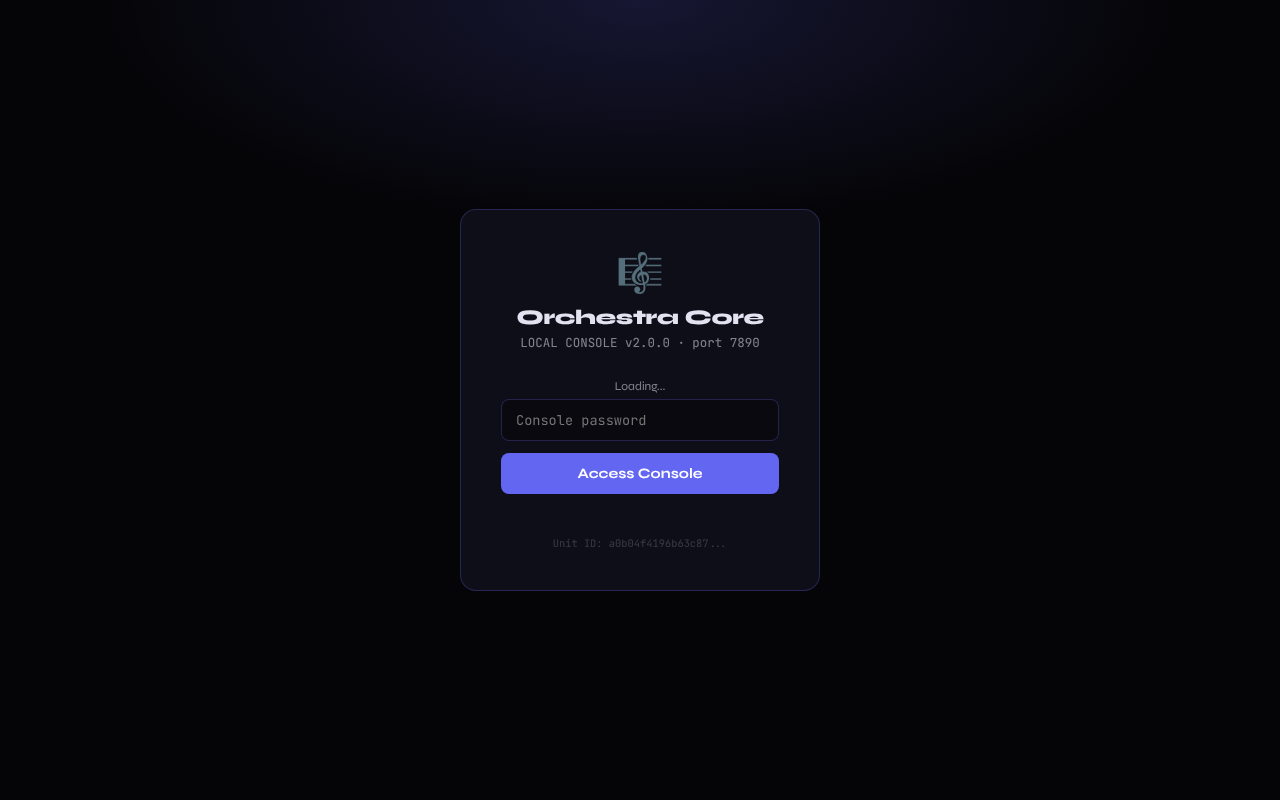
Sign in to the console
Open http://localhost:8088/console and sign in with the console password you set in orchestra.yml (console_password). Keep it private: it controls every worker and key.
Orchestra console sign-in - 3
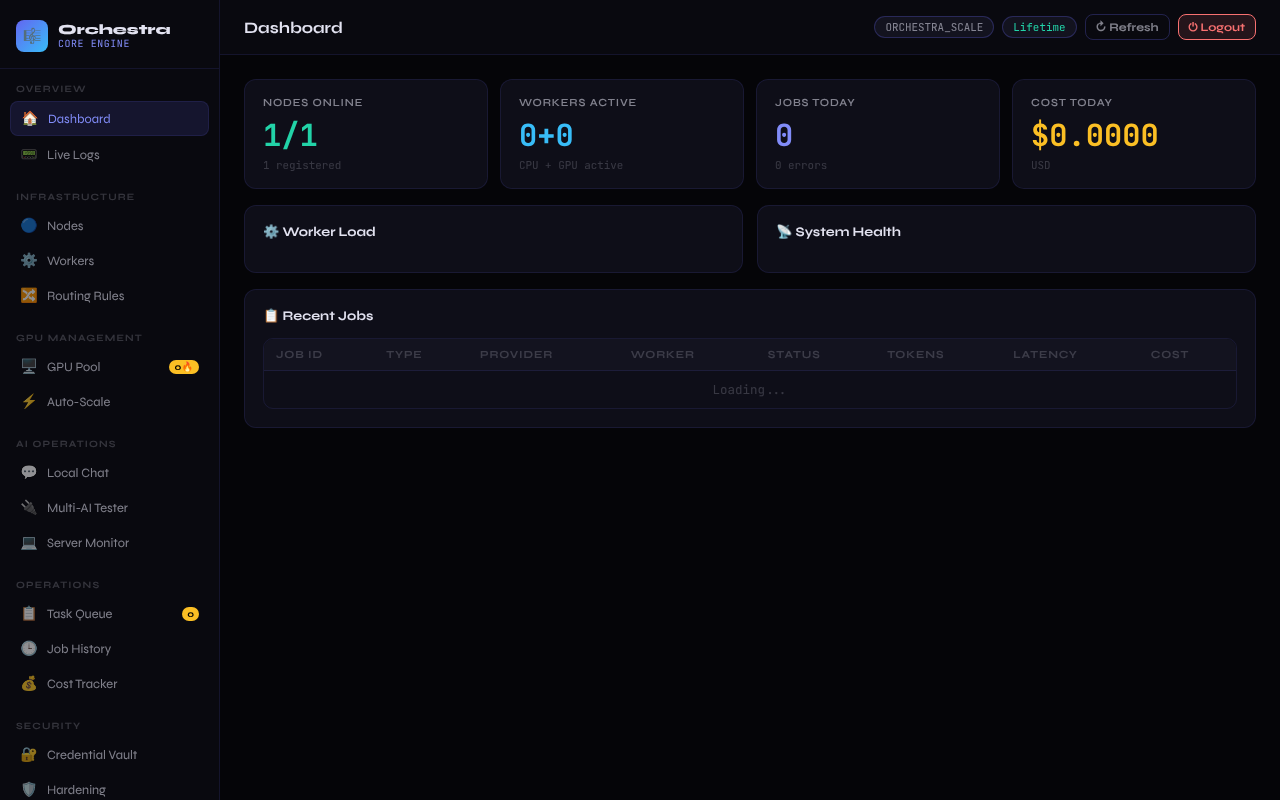
Dashboard
The dashboard shows the state at a glance: workers, queue, load, cost and the licence limits.
Orchestra console dashboard - 4
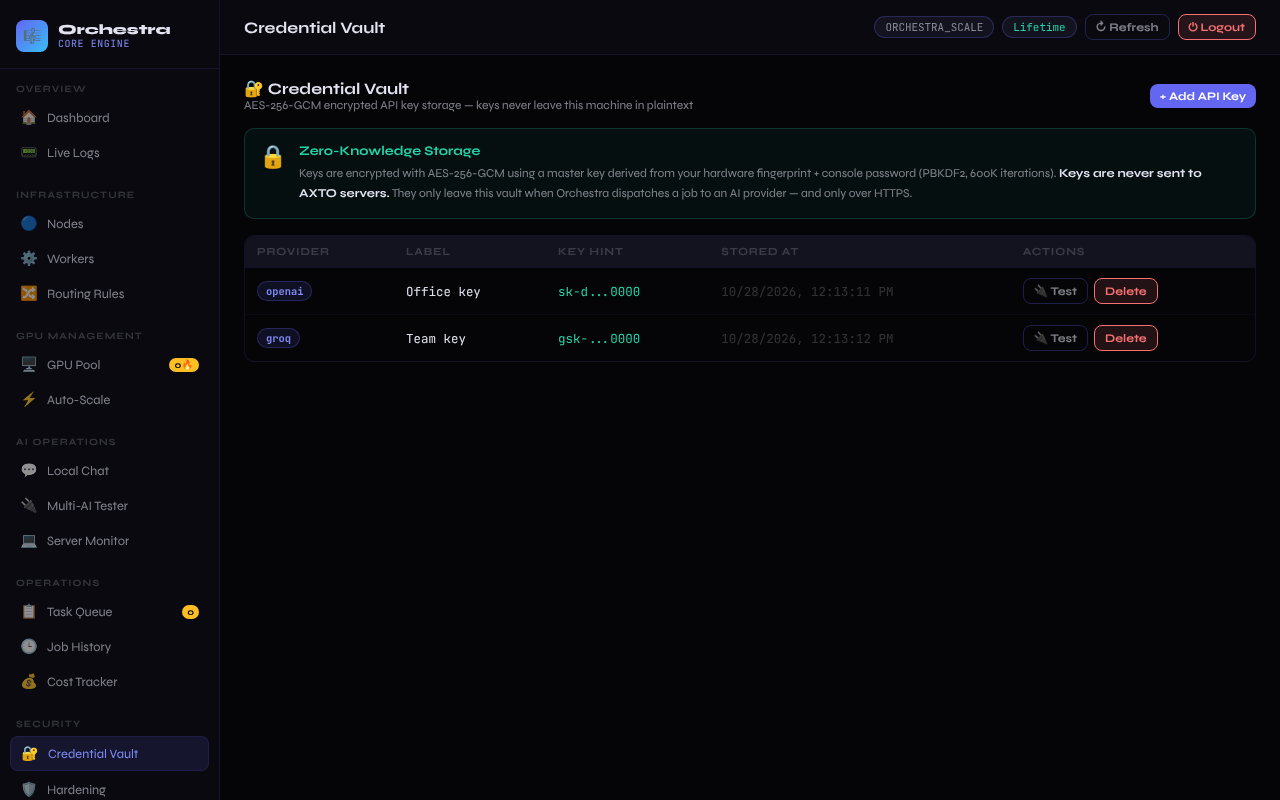
Store your provider keys
In Credential Vault, add the key of each provider you use (OpenAI, Anthropic, Groq, Gemini, Mistral and more). Keys are stored encrypted in the vault.
Credential Vault with provider keys - 5
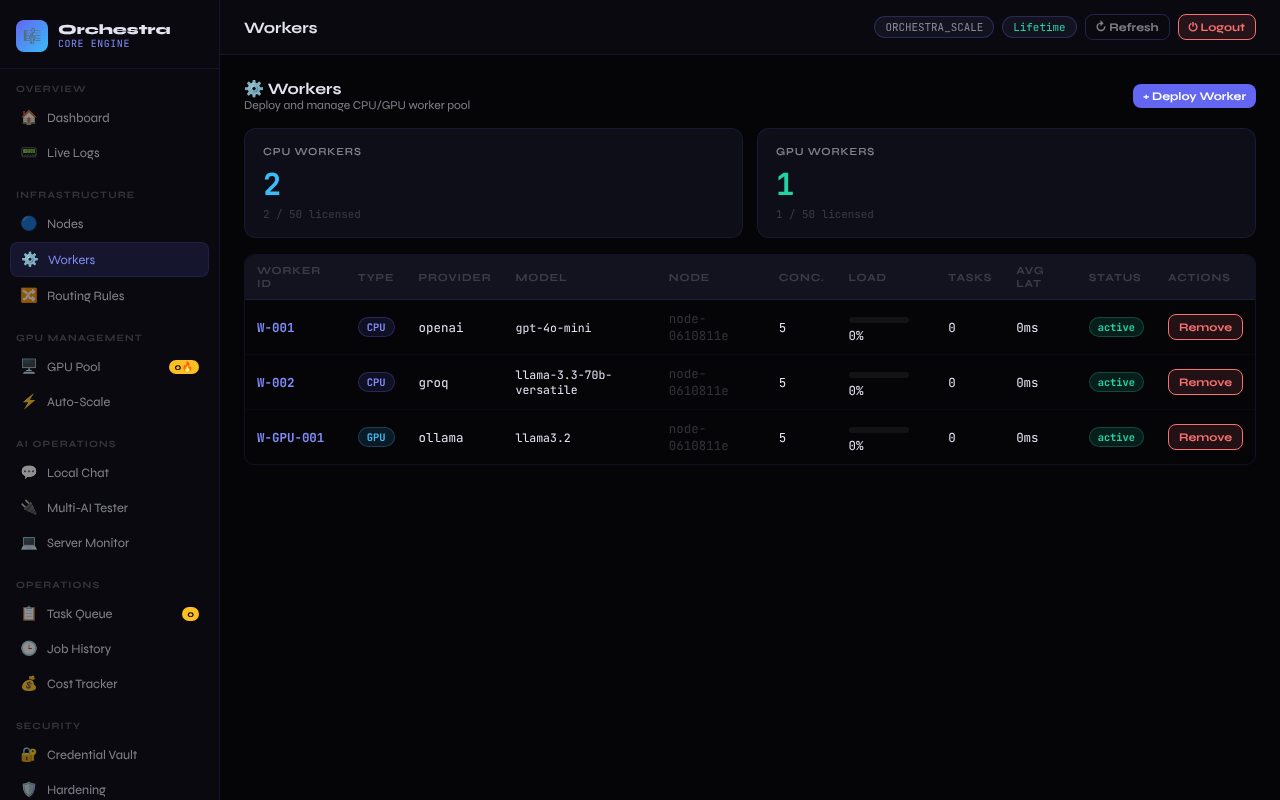
Add CPU workers for cloud models
In Workers, register a worker per provider and model: choose the node, the provider, the model and the concurrency. The routing mode chooses which worker takes each job.
Workers page with CPU and GPU workers - 6
Add GPU workers from your graphics card
In GPU Pool, each worker shows its card, utilisation, memory in use, temperature and power. AXTO Setup adds the GPU worker by itself when your card is ready (NVIDIA on Windows and Linux, AMD on Linux) and tests it first. On Auto-Scale, + GPU worker starts another one on the card with the most room. Swap replaces a GPU worker: remove it, then add the replacement, so the total stays within your limit.
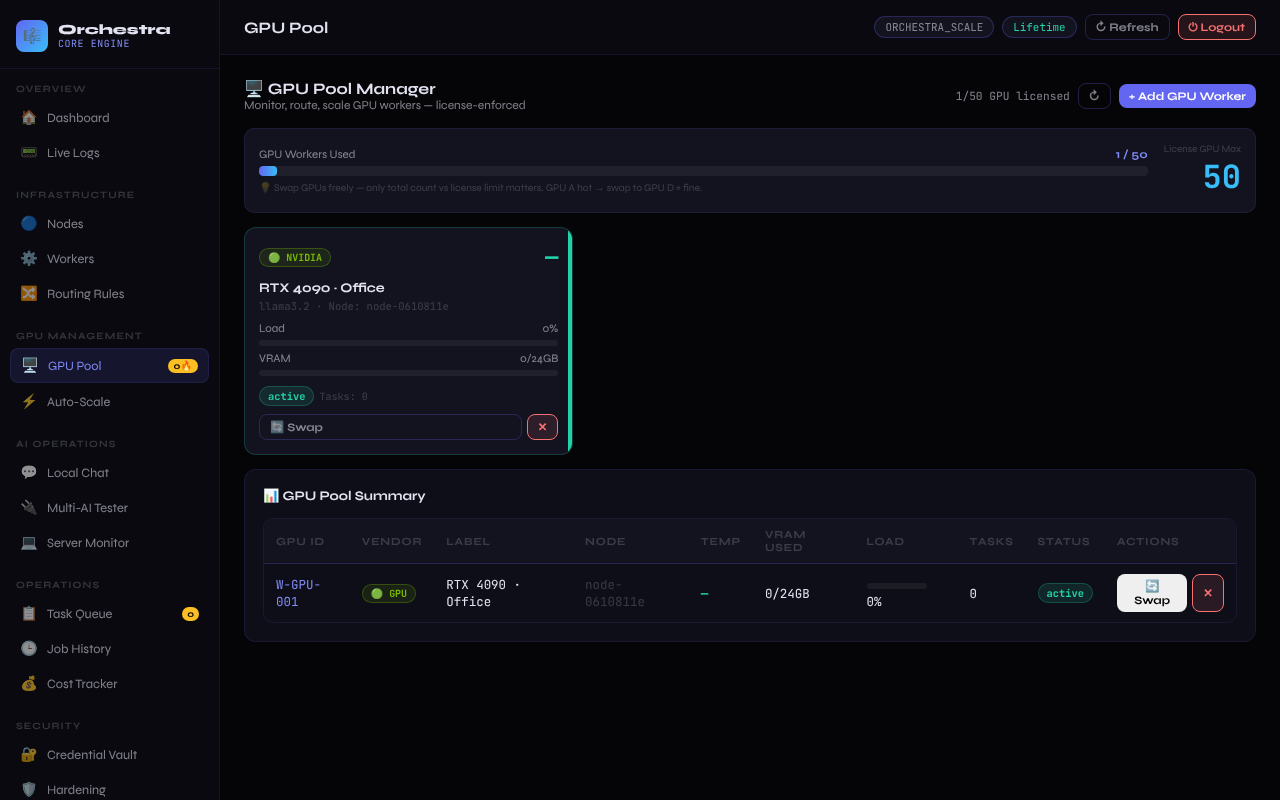
GPU Pool with the detected card - 7
Let Auto-Scale work within your limit
On Professional and Enterprise, Auto-Scale starts a real GPU worker — one per card, on the card with the most free memory — when the load is high, even from zero when GPU jobs are waiting, and stops the idle ones it started, always within the GPU limit of your edition. Set the thresholds, the minimum, the maximum and the cooldown; the thermal rules pause a hot card and move jobs to a cooler one.
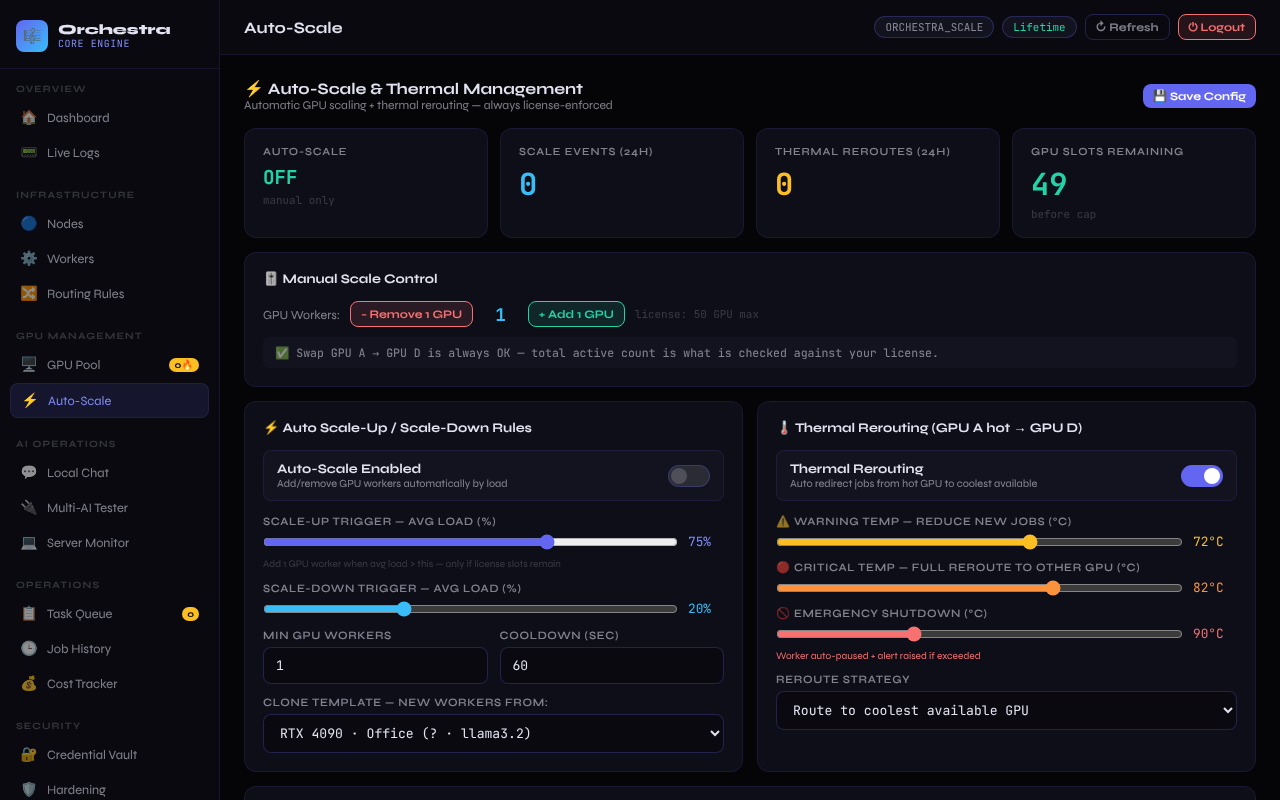
Auto-Scale rules and thermal settings - 8
Send a test and watch the cost
Local Chat sends your message to the provider you choose, with its key from the vault, and shows the answer, the tokens and the cost. The Cost Tracker shows spend per provider. Routing Rules shows the active mode: smart balance, cost-first, quality-first, local-first, failover, semantic or round-robin.
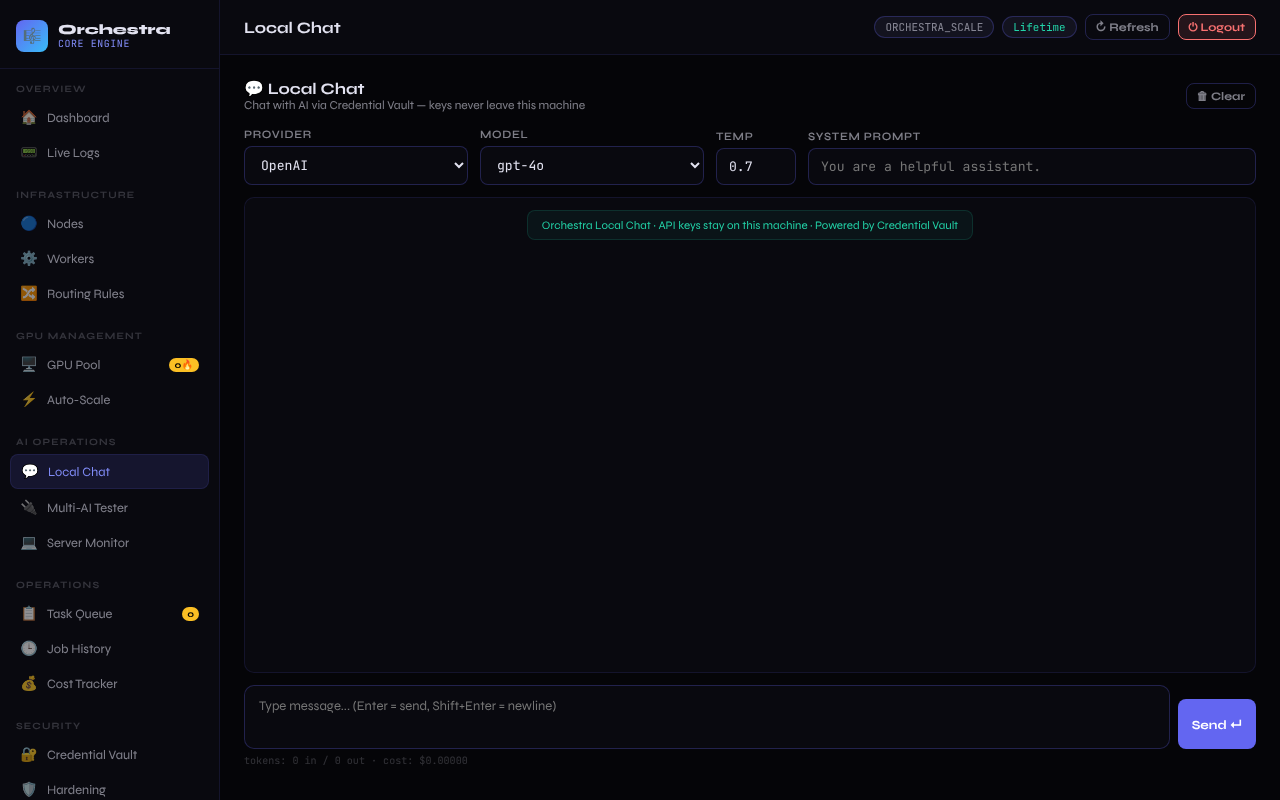
Local Chat with an answer and cost - 9
Connect your apps
In Client API, create a key for each app and set its requests per minute, tokens per minute, monthly budget and allowed models. The app then calls http://your-server:8088/v1/chat/completions like OpenAI (any OpenAI SDK, with its base URL changed); Orchestra routes each request to a worker and the provider keys never leave the vault. Text messages are supported; images in messages and tool calling are not.
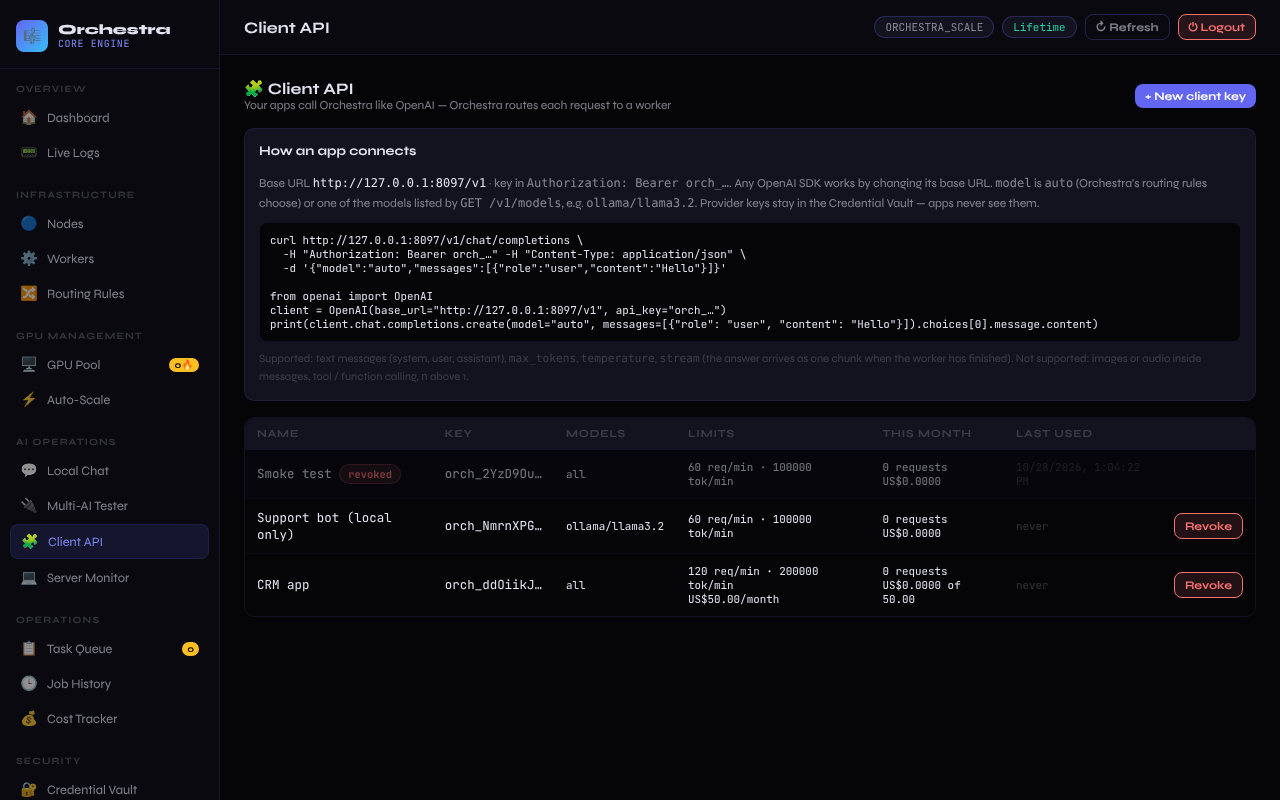
Client API page with app keys and limits
Watch the walkthrough
A recording of the console from sign-in to the cost tracker, on demo data.
Prices are the current list prices for each edition, shown above.
Why Orchestra AI
Seven routing modes
Smart balance, cost-first, quality-first, local-first, failover, semantic and round-robin — switch them live from the console.
Zero token markup
You pay providers directly, and the Cost Tracker shows spend per provider and per model.
Mix cloud and local GPUs
Blend cloud providers with your own GPU workers and balance the load between them.
One live console
Workers, queue, logs, nodes, history and cost on one screen — no separate tools.
Your apps plug straight in
Any OpenAI SDK works: point its base URL at Orchestra and give each app its own client key, limits and monthly budget.
You own the whole stack
- BYOKBring Your Own Key
Bring your own provider keys — OpenAI, Claude, Gemini, Groq and more. You pay them directly.
- BYOMBring Your Own Model
Add your own GPU workers running Ollama or vLLM for fully local inference.
- BYODBring Your Own Data
Prompts, responses and cost analytics stay entirely on your infrastructure.
- BYOIBring Your Own Infrastructure
Deploy the router and workers as Docker containers wherever you like.
- BYOXBring Your Own eXecution
Own your entire AI supply chain — no lock-in, no markup, no middleman.
Capabilities
- ✓16 provider adapters, including Ollama on your own computer and custom endpoints
- ✓CPU workers for cloud providers and GPU workers for local models
- ✓GPU detection for every brand: NVIDIA, AMD, Intel, Apple and more
- ✓Autoscaling and thermal rerouting in Professional and Enterprise
- ✓Priority job queue with retries
- ✓Seven routing modes with a circuit breaker and fallback
- ✓Cost analytics per provider and model in Professional and Enterprise
- ✓Encrypted Credential Vault for your provider keys
- ✓OpenAI-compatible client API for your own apps (/v1/chat/completions, /v1/models) with a key per app, rate limits and a monthly budget
Own Orchestra AI for life
One lifetime licence. Runs on your own servers — cloud, on-premise or air-gapped. Your keys, your data.